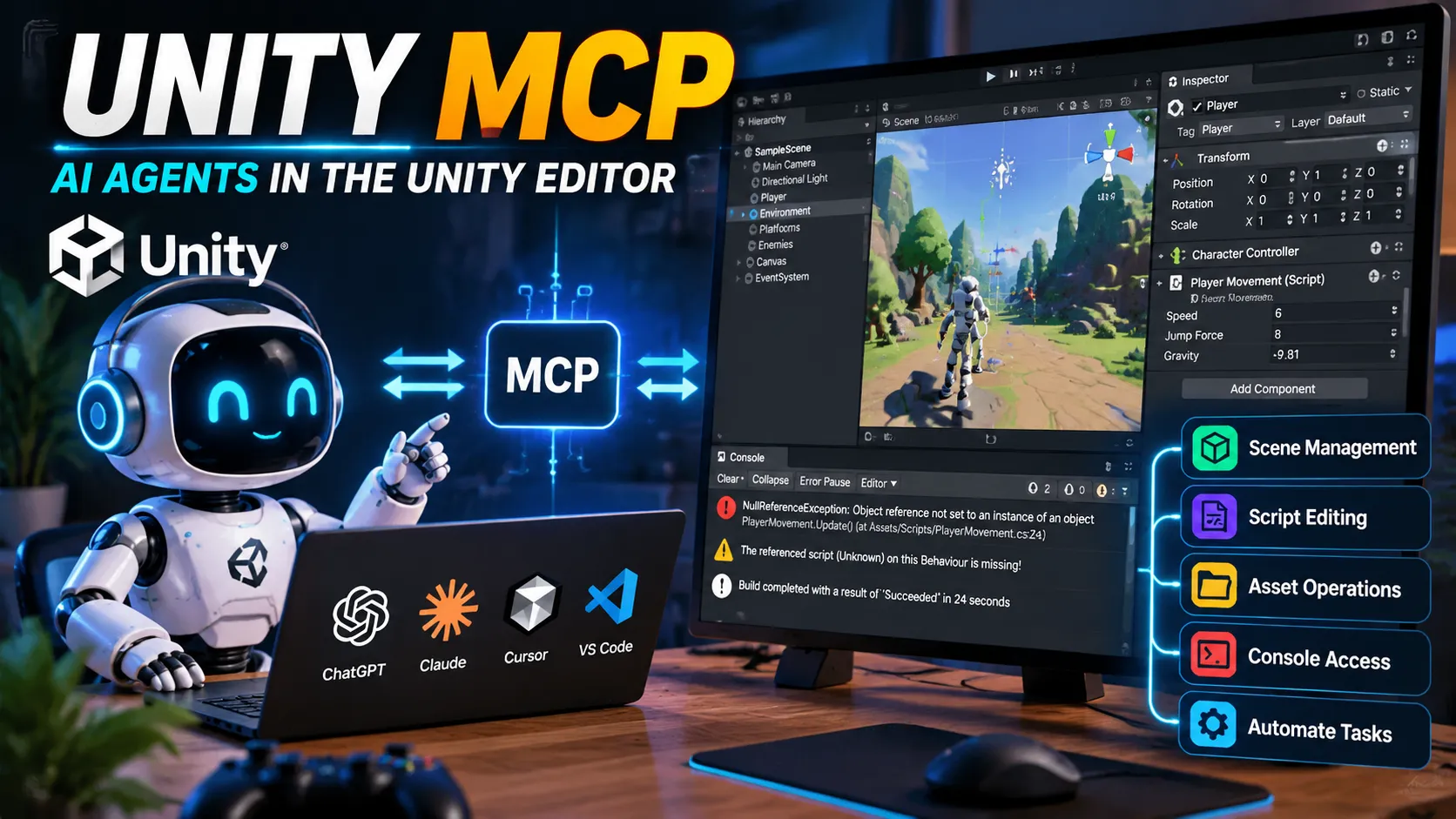
Game development is becoming more than writing scripts and clicking through editor menus. With the Model Context Protocol (MCP), AI coding assistants can connect to a running Unity Editor, inspect project information, manage GameObjects, work with scripts, and automate selected development tasks.
This is one of the more interesting developments in AI-assisted game development because it addresses a real limitation of ordinary coding assistants: they can read C# code, but understanding what is actually happening inside a game project is much harder.
Unity has been developing its own MCP integration as part of its AI tools, while community projects such as MCP for Unity provide alternative ways to connect AI agents to the Editor. Unity’s official documentation describes MCP workflows for scene management, asset operations, script editing, and Console access. Unity’s official MCP overview explains the setup and connection process.

Unity
+2
In this guide, we will explore what Unity MCP actually does, what has changed recently, how it can improve a developer’s workflow, and what you should consider before letting an AI agent modify your project.
Research checked on October 18, 2026.
What Is Unity MCP?
MCP stands for Model Context Protocol, an open standard that allows AI applications to communicate with external tools and data sources through a structured interface.
In a conventional workflow, you might ask an AI assistant to fix a Unity bug. You copy the C# script, paste the Console error, explain the relevant GameObject setup, and describe what happens when you press Play.
The assistant then generates a suggested fix based on the information you provided.
The problem is that you may not have provided enough context. The issue could be caused by a missing component, an incorrect Inspector value, a broken reference, or a project configuration that the assistant cannot see.
Unity MCP can bridge this gap by exposing selected Editor functionality to an MCP-compatible AI client. Instead of relying entirely on copied text, the client can request information from the connected Unity project and use available tools to perform supported operations.
Think of it as a communication bridge between the AI assistant and your game development environment.
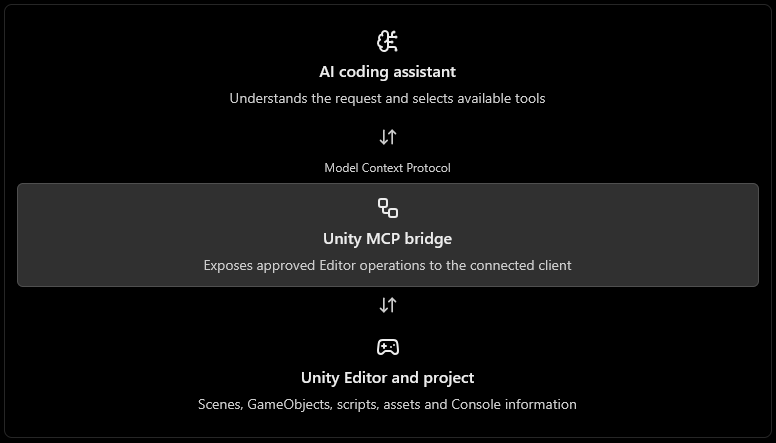
The important point is that MCP does not magically make an AI model more intelligent. It gives the model access to additional context and tools. The quality of the result still depends on the model, the available operations, your instructions, and the verification process.
Unity’s Official MCP vs Community MCP for Unity
One important detail often gets lost in discussions about Unity MCP: the name is used for more than one implementation.
Unity’s official MCP integration is part of its AI Assistant tooling. Separately, CoplayDev maintains an open-source project called MCP for Unity, which connects AI assistants to the Unity Editor through its own bridge and server.
These are related approaches, but they are not the same product.
1. Unity’s official MCP
Unity’s AI Assistant package includes MCP functionality for connecting supported external AI clients to the Editor. Its documented capabilities include scene management, asset operations, script editing, and Console access. The documented setup targets Unity 6 (6000.0) or later with the required AI Assistant package.
Best starting point if you want Unity’s own integration.
2. MCP for Unity by CoplayDev
This community-maintained project offers a separate Unity Editor integration under the MIT license. Its repository documents support for scene and asset management, C# editing, testing, profiling, and build workflows. Release v10.3.0 was published on October 4, 2026.
Worth evaluating if you want an open-source alternative and a broader agent workflow.
Which one is better? There is no universal answer. Compare the exact Unity version, client compatibility, tool coverage, setup requirements, license, and stability of the version you intend to use.
Do not install both into the same project without a specific reason. Start with one integration and verify its behavior before adding another.
What Can Unity MCP Actually Do?
The most useful way to evaluate MCP is to look at practical development tasks rather than the number of tools a project advertises.
1. Inspect Scene Hierarchies and GameObjects
Suppose your player character refuses to move.
The cause might be a disabled script, an incorrect component configuration, or a reference that was never assigned. A coding assistant that can inspect the relevant Editor information has more context than one that sees only the movement script.
Depending on the integration and enabled tools, you can ask questions such as:
- Which components are attached to the Player GameObject?
- Are any required references missing?
- What objects exist in the current scene?
- Which Console errors occurred after entering Play Mode?
This makes MCP particularly interesting for debugging problems that involve both code and Editor configuration.
However, access to project information does not guarantee that the assistant will identify the correct cause. Its diagnosis still needs to be checked.
2. Create and Configure GameObjects
Imagine that you are building a simple obstacle course.
You need a floor, several platforms, a player spawn point, and a few obstacles. Instead of manually creating every object, you could ask a connected agent to create the supported objects and configure their basic properties.
For example:
Create a new Cube named
MovingPlatform. Set its position to (0, 2, 5), scale it to (4, 0.5, 2), and add a Box Collider if one is not already present. Do not modify other scene objects.
The specific operations available depend on the MCP implementation and enabled tools.
This can reduce repetitive editor work. It does not automatically create a polished level with good pacing, art direction, collision behavior, and performance.
3. Read Console Errors and Investigate Bugs
Debugging is one of the strongest potential uses of Unity MCP.
Consider an error such as a NullReferenceException. The error tells you that code tried to access a reference that was null, but it does not always reveal why that reference was missing.
An MCP-connected agent may be able to inspect relevant Console messages and available project context, helping it investigate the issue without requiring you to copy everything manually.
A practical debugging request might be:
Read the current Unity Console errors. Identify the first relevant error, explain its likely cause using the available project context, and propose the smallest possible fix. Do not modify any files until I approve the proposed change.
That last sentence matters. Diagnose first, then decide whether the proposed change should be applied.
4. Work With C# Scripts
MCP-enabled workflows can support script editing and code-generation tasks, depending on the connected tools.
For example, you could ask an agent to create a basic checkpoint component, connect it to the relevant GameObject, or inspect an existing script before suggesting a correction.
But generating a script is only the beginning.
You still need to verify:
- Whether the code compiles.
- Whether it follows the project’s existing architecture.
- Whether it handles missing references.
- Whether it works during Play Mode.
- Whether it creates unintended side effects.
- Whether the implementation performs acceptably.
AI-generated code that compiles can still contain logic errors.
5. Automate Repetitive Editor Work
Some Unity tasks involve many small operations rather than difficult programming.
Examples include organizing scene objects, creating standard GameObject structures, assigning properties, and preparing repetitive project configurations.
An MCP integration can expose supported operations for these workflows. The benefit is greatest when a task is well-defined, repetitive, and easy to verify.
For unique or destructive operations, keep human review in the loop.
6. Connect Development Tools Into a Larger Workflow
The Model Context Protocol is not limited to Unity. An MCP-compatible client can potentially use other connected tools alongside Unity tools, depending on the client’s configuration.
For example, a development workflow might combine project inspection, code changes, version-control operations, and test execution.
The key word is potentially: MCP compatibility alone does not mean every tool is connected, every operation is supported, or every workflow can run unattended.
Unity’s official documentation also describes registering custom MCP tools, allowing developers to extend the available operations.
What’s New in Unity MCP in 2026?
There are two developments worth watching: Unity’s official MCP integration and the continued evolution of community tooling.
Unity’s Official AI Tooling
Unity published its official introduction to MCP on May 11, 2026, explaining how supported external AI clients can connect directly to a running Unity project. A follow-up article on June 8, 2026, discussed the broader role of MCP servers in game development, including scene inspection, debugging, and editor automation.
The important development is not simply that an AI assistant can generate Unity code. It is that an assistant can work with project context and supported Editor operations rather than relying only on the text supplied in a prompt.
Unity’s documentation also describes client approval controls, configurable tools, and support for multiple connected clients. Availability and behavior depend on the installed package and integration configuration.
Community MCP for Unity: The October Update
CoplayDev’s MCP for Unity released version 10.3.0 on October 4, 2026.
The release notes include improvements to tool discovery, fixes related to repeated command execution and Console reading, setup and client-registration changes, and a Blender Bridge feature for connecting Blender-related workflows through Unity’s integration.
These changes are relevant because an AI workflow needs more than a large tool list. It also needs dependable connections, correct tool execution, and predictable behavior when the Editor reloads or a request fails.
The release does not establish that every feature is production-ready for every project. Test the version with your actual Unity setup before adopting it for important work.
How to Get Started With Unity’s Official MCP
If you want to try Unity’s official integration, begin with a small test project.
Step 1: Check Your Requirements
Unity’s published setup guide specifies:
- Unity 6 (6000.0) or later.
- The
com.unity.ai.assistantpackage. - An MCP-compatible AI client, such as Claude Code, Cursor, Windsurf, or Claude Desktop.
Check the official documentation for current package availability and client-specific setup instructions.
Step 2: Verify the Unity Bridge
Open your Unity project and go to:
Edit → Project Settings → AI → Unity MCP Server
Check that the Unity Bridge status shows Running. If it is stopped, use the available Start control.
The documented setup installs a relay executable that the AI client uses to connect to Unity.
Step 3: Configure Your AI Client
Where supported, use the Integrations section in the Unity MCP settings to configure your client automatically.
Manual setup is also possible. In that case, follow the exact configuration provided by Unity for your operating system and client. Do not blindly copy a macOS configuration into a Windows setup.
Step 4: Review and Approve the Connection
For direct external client connections, Unity’s documentation describes a pending-connection approval step in Project Settings. Review the client and approve only the connection you intend to use.
Some AI Gateway connections follow a different approval flow.
Step 5: Test With a Read-Only Request
Start with something simple:
Read the Unity Console messages and summarize the warnings and errors. Do not change any files, GameObjects, or project settings.
Check whether the AI client can see the available Unity tools and return useful results.
Once that works, move to a small, reversible scene operation.
Five Practical Unity MCP Workflows to Try
Here are five experiments that demonstrate the value of an MCP connection without immediately handing over an entire project.
1. Scene audit
Ask the agent to inspect the current scene and summarize the main GameObjects, important components, and obvious configuration issues.
Goal: understand the current scene before making changes.
2. Console investigation
Ask it to group the Console errors by likely cause and identify which error should be investigated first.
Goal: reduce the time spent gathering debugging context.
3. Test-level setup
Ask it to create a small platform layout with named objects, specified positions, and basic colliders.
Goal: automate repetitive scene construction.
4. Script review
Ask it to inspect one script, identify potential problems, and suggest a minimal patch without applying it.
Goal: use project context to improve code review.
5. Pre-build checklist
Ask it to inspect the available project settings and prepare a list of items you should verify before making a build.
Goal: make release preparation more systematic, not replace actual build testing.
For every experiment, record what the agent got right, what it missed, and how much manual correction was required. That is a better measure of usefulness than whether the demo looked impressive.
Is Unity MCP Free?
The answer depends on which implementation and AI client you choose.
| Component | What to check |
|---|---|
| Unity’s official MCP | AI Assistant package availability, eligibility, and applicable usage requirements |
| MCP for Unity by CoplayDev | The project is published under the MIT license |
| AI coding assistant | Subscription, model usage, and request limits |
| Other MCP services | Their individual licenses, pricing, and access requirements |
CoplayDev’s repository explicitly describes MCP for Unity as a free, MIT-licensed project. That does not mean every connected AI model or external service is free.
For the official integration, check Unity’s current package and AI-service terms before assuming that all associated functionality has no usage limits or costs.
Limitations You Should Understand Before Using It
MCP can make an AI assistant more useful, but it introduces practical considerations.
AI Can Still Make Incorrect Changes
An agent may misunderstand the scene, choose the wrong object, or generate a script that does not fit your architecture.
Use narrow instructions and ask it to explain its intended changes before applying them.
Editor Access Requires Careful Permissions
A tool that can inspect a scene may also expose operations that modify project content.
Keep a clean version-control history, review pending changes, and avoid granting broader access than the workflow needs.
Tool Execution Is Not the Same as Successful Testing
A tool call returning successfully does not prove that the game behaves correctly.
You still need to compile, run, test, and inspect the resulting project.
MCP Does Not Replace Unity Knowledge
You will get better results when you understand GameObjects, components, C#, physics, prefabs, scenes, and the Unity lifecycle.
Without that foundation, it is much harder to distinguish a correct fix from one that merely removes an error message.
Security and Project Safety
Before connecting an AI agent to a project, consider what it can read and modify.
- Commit your work to version control before experiments.
- Start with a copy of an existing project or a small test project.
- Review the available tools and connection permissions.
- Require approval for destructive or broad changes.
- Avoid exposing secrets, credentials, or private project data unnecessarily.
- Review code and asset changes before including them in a release.
The MCP protocol provides a structured way for applications to expose tools. It does not make every tool safe by default, nor does it guarantee that a connected AI agent will use tools correctly.
Security depends on the implementation, permissions, client configuration, and the decisions made during execution.
Will Unity MCP Replace Game Developers?
No evidence from the capabilities described here establishes that Unity MCP replaces the full game development role.
It can reduce certain repetitive tasks and help developers work with project context. But game development involves design decisions, architecture, performance optimization, testing, accessibility, production planning, and the judgment required to decide whether a feature improves the game.
A useful way to think about MCP is as an interface for delegating bounded tasks—not as a replacement for the person responsible for the result.
Developers who learn to combine automation with verification will be better positioned to use these tools effectively.
Final Thoughts
Unity MCP is worth exploring because it connects AI-assisted programming with the actual environment where a game is built.
Instead of limiting an assistant to pasted code and error messages, it can provide access to selected project information and Editor operations. That opens up practical workflows for scene setup, debugging, code editing, and repetitive tasks.
Start small. Connect one AI client, test a read-only request, and then try a reversible Editor operation. Measure the results, keep changes under version control, and verify everything that matters.
The goal is not to let AI do as much as possible. It is to make the development process more effective without losing control over the project.